Supported devices

Does it work on my reader? Almost certainly.

Kevra is on your phone, your tablet and your ereader, with the same account. Your progress follows you from one to the next. Here's what it does on each device, what it doesn't, and how to install it.
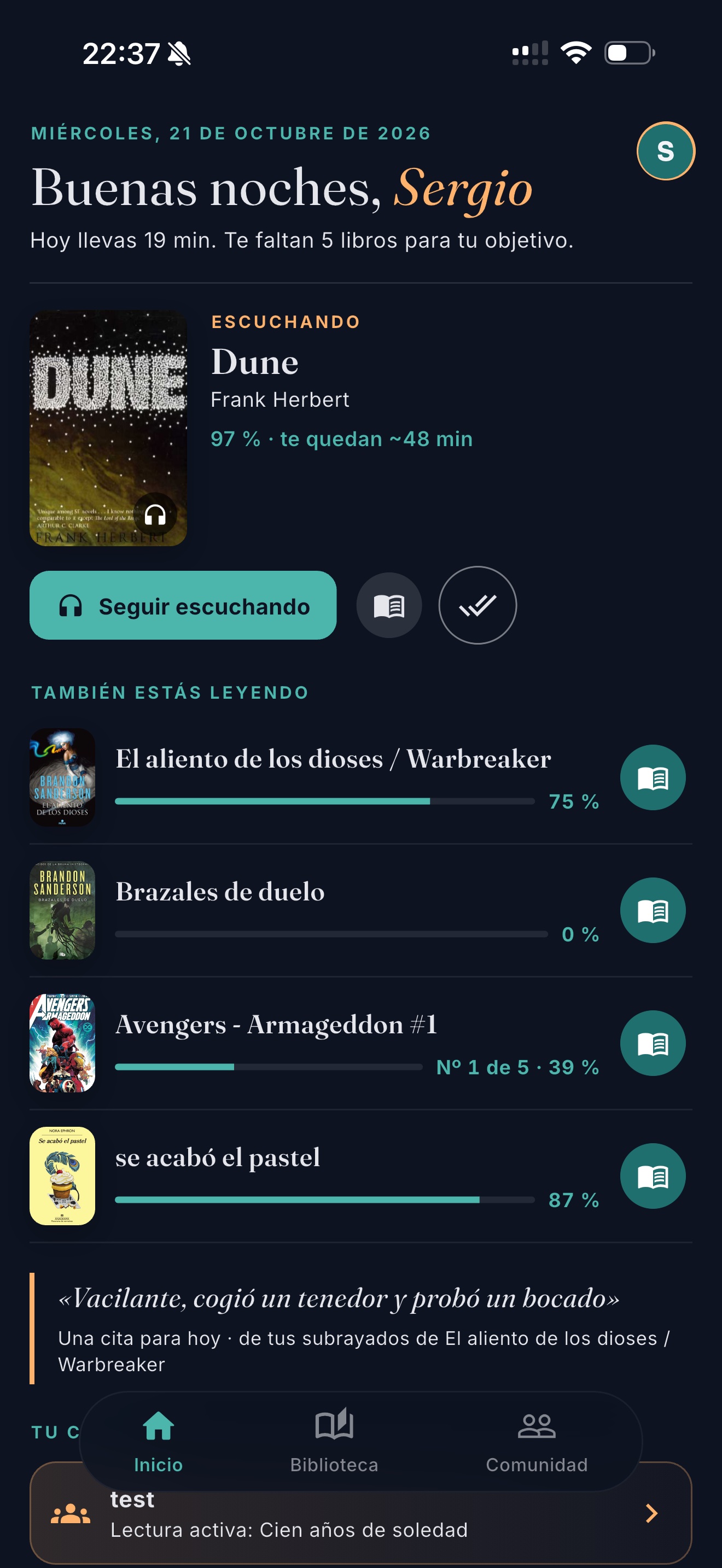
The app's home screen on iPhone
The app on an iPad or Android tablet
The full appApp Store · Google Play

iPhone, iPad and Android

All of Kevra, nothing cut. It's home to the spoiler-free companion, the social side, audiobooks and stats, and where you link your other readers.

What you can do

  • Books, comics, PDFs and audiobooks
  • Your clouds and your home server
  • The companion, the quiz, clubs and lists
  • Public libraries and free books
  • Widgets and stats
  • On iPhone: a reading card on the lock screen
  • On Android: turn pages with the volume buttons

What not

  • On iPhone, turning pages with the volume buttons (iOS doesn't allow it)
1Download it from the App Store or Google Play.
2Sign in with Google, Apple or your email.
3Add your books or connect your clouds.
ReadComicsAudioSyncs on its ownNotesNo spoilersStreak
Photo: Kevra on a Boox, mid-read
E-inkGoogle Play

Boox, PocketBook, Meebook…

Any e-ink reader running Android. It's the same app, but it switches to e-ink mode on its own: pure black and white, bigger text and nothing that moves.

What you can do

  • Everything in the phone app
  • Turn pages with the physical buttons
  • Syncs when you close the cover and when you open it
  • Profiles: everyone switches to their own account with a tap
  • Greyscale comics and audiobooks

What not

  • The animated page turn or word-by-word reading: they make no sense on e-ink
1Open Google Play on your ereader.
2Install Kevra and sign in with your account.
3E-ink mode turns on by itself.
ReadComicsAudioSyncs on its ownNotesNo spoilersStreak
Photo: the Kevra app on the Kobo
BetaFrom the web

Kobo

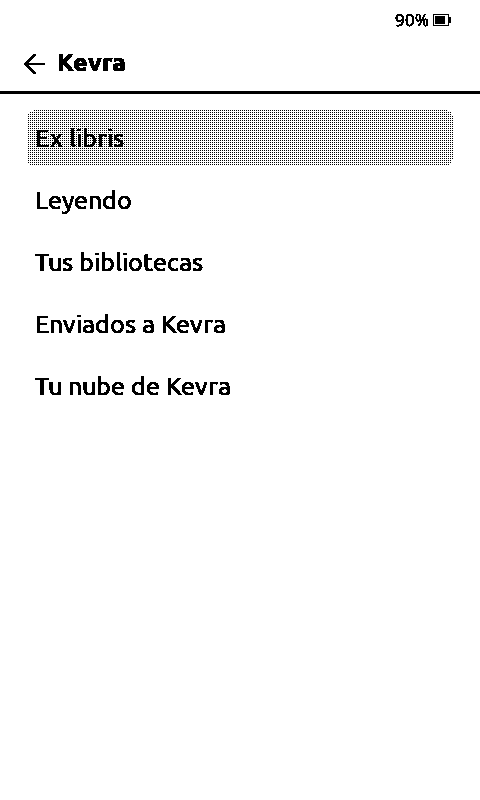
A Kevra app that lives on your Kobo, alongside Kobo's own. Open a book and it's right where you left it on your phone, without pressing a thing.
What you can do

  • Download your books: Ex libris, what you're reading and your clouds
  • Progress syncs on its own, both ways
  • Highlights, notes and dictionary
  • The spoiler-free companion
  • Your reading time and your streak
  • Light, warmth and the cover on the sleep screen

What not

  • Audiobooks or comics
  • Books bought from the Kobo store
  • Kobos on firmware 5 or later
1Plug the Kobo into your computer and open the page in Chrome or Edge.
2The page copies Kevra onto the Kobo. Unplug it.
3Open it and type the code into the phone app.
ReadComicsAudioSyncs on its ownNotesNo spoilersStreak
Photo: the Kevra plugin on the X4 Pro
From the webX3 · X4 · X4 Pro

Xteink

Xteink's pocket readers, with CrossPoint, their open-source firmware, and the Kevra plugin. The page installs everything and first saves a backup so you can go back to the factory firmware.

What you can do

  • Sign in by scanning a QR code with your phone
  • Browse and download your Ex libris, what you're reading and your libraries, with search
  • When you put it to sleep, Kevra gets where you are and how much you've read
  • Bring over your progress from your phone with a button (on the X4 Pro, hold Home)

What not

  • It only reads EPUB
  • Notes or the companion
  • Bringing over progress without pressing anything: that's down to CrossPoint
1Plug the Xteink into your computer and open the page in Chrome.
2Backup, CrossPoint and the plugin, one step each.
3On the Xteink, open Kevra and scan the QR code.
ReadComicsAudioSyncs on sleepNotesNo spoilersStreak
With what you already use

KOReader, CrossInk and other apps

If you already read with KOReader (jailbroken Kindle, Kobo, PocketBook) or another app, connect it to Kevra through two standards: the OPDS catalogue for your books and KOReader Sync for your progress. You'll find the details in the app: Settings → Other readers.

OPDSYour books

Your Kevra catalogue

Ex libris, what you're reading, your libraries and search, from any app with OPDS.

KOSyncYour progress

Where you're up to

To and from your phone when you sync, plus an estimated reading time.

KindleUntouched?

A stock Kindle, no

Amazon won't let you install anything. With KOReader, if you jailbreak it, yes.

Your sources

Where your books come from

Kevra brings together what you have, without moving it. And with some servers, your progress goes back to the server too.

Clouds · Plus

Dropbox, Google Drive, Box

Your folders as your library. Books download straight to you, never through Kevra.

Progress in Kevra
Server

Calibre and Calibre-Web

Through their OPDS catalogue, just like COPS or Ubooquity.

Progress doesn't go back
Server

Kavita and Komga

Books and comics; comics are read without downloading them.

Progress goes back to the server
Server

Jellyfin and Emby

Your books and audiobooks from your media library.

Progress goes back to the server
Server

Nextcloud, Synology, QNAP

Any folder over WebDAV.

Progress doesn't go back
Audio

Audiobookshelf

Your audiobooks: stream them or download them, with chapters.

Progress both ways
Free

Gutenberg, Internet Archive, Wikisource

Thousands of public-domain books, in Spanish and English.

Progress in Kevra
Yours

From your phone

«Open with Kevra» from any app, or import from Goodreads.

Progress in Kevra
Compare

Everything at a glance

iPhone · iPadAndroidBoox · PocketBookKoboXteinkKOReader
Read books●●●●●●
Comics and PDFs●●●——depends on the app
Audiobooks●●●———
Your library and your clouds●●●●●via OPDS
Synced progress●●●●on sleep; fetch with a buttonwith a button
Highlights and notes●●●●——
Spoiler-free companion●●●●——
Streak and reading time●●●●●estimated
How to installStoreStoreStoreFrom the webFrom the webSettings

Your device isn't listed?

Tell us which one and we'll take a look. Many work with KOReader or the Android app.

Get in touch